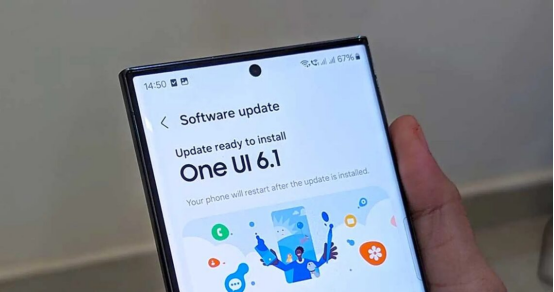
Samsung’s One UI 6.1 brings a lot of optimizations and new features, but some default settings may not be suitable for everyone’s usage habits. In this blog, we will take stock of the most useful features and tell you which settings are worth adjusting immediately to take your Galaxy device experience to the next level!
1. Smart battery optimization: the key to extending battery life
One UI 6.1’s adaptive battery function is smarter than ever, but the default settings may be too conservative. Go to Settings > Battery and device maintenance > Battery and try adjusting the following options:
Turn on “Adaptive Battery” (learn your usage habits and optimize background applications)
Turn off “Processing speed limit” (unless you are particularly concerned about battery life, there is no need to limit performance)
Manually manage “deep sleep applications” (add infrequently used social and shopping apps to reduce background power consumption)
Actual effect: After adjustment, the S23 Ultra’s screen-on time increased by an average of about 1.5 hours!
2. Should the camera “Auto HDR” be turned off or on?
One UI 6.1’s camera HDR algorithm is more aggressive, but sometimes it causes the photo contrast to be too high. If you like more natural imaging, you can try:
Go to Camera > Settings > Advanced Picture Options
Turn off “Auto HDR” (suitable for scenes with uniform light)
Turn on “Expert RAW” mode (manually control the dynamic range, suitable for photography enthusiasts)
Comparison test: In backlit portrait shooting, the skin color is more natural after turning off HDR, but the details in the dark part will be reduced – it is recommended to switch flexibly according to the scene.
3. Sidebar upgrade: truly efficient multitasking
The new smart sidebar now supports drag-and-drop split screen, which is more practical than ever!
Long press the sidebar icon and directly drag the application to any position on the screen to achieve quick split screen
Custom tools: Add high-frequency functions such as “Screenshot”, “Translation”, and “Clipboard”
Hide infrequently used items (avoid the sidebar from being too bloated)
Use scenario: quickly call up the note app when watching a video, or compare prices on different platforms when shopping, double the efficiency!
4. Notification bar overhaul: These quick switches are the most useful
One UI 6.1 redesigned the quick panel, but the default layout may not meet your needs.
Pull down the notification bar > Click the “⋮” button in the upper right corner > Edit button
Prioritize “Device Control”, “Do Not Disturb Mode”, and “Screen Recording” (adjust according to personal habits)
Turn on “Quick Access” (double-click the power button to directly start the specified function, such as payment or camera)
Tips: Long press the Wi-Fi/Bluetooth icon to directly enter the detailed settings, no need to click through the menu layer by layer!
5. Animation optimization: faster response speed
If you feel that the phone is not sliding smoothly enough, it may be that the animation speed is holding you back.
Go to “Settings > Accessibility > Enhanced Visibility > Reduce Animation”
Or turn on the developer options and adjust the “Window Animation Zoom” to 0.5x (faster)
Experience comparison: After the adjustment, the delay of application switching and returning to the home screen is significantly reduced, and the operation is more responsive!
6. Good Lock plug-in must be installed: unlock hidden functions
Samsung’s Good Lock suite is still useful on One UI 6.1, and it is recommended to install:
“One Hand Operation+” (custom gestures, more convenient one-handed operation)
“SoundAssistant” (independently adjust the volume of each App, a must-have for game/video fans)
“QuickStar” (custom status bar icon and layout)
Effect display: With Good Lock, you can turn the notification bar into a transparent style, and even adjust the touch area of the virtual button!
Summary: Which settings are most worth changing?
Battery optimization → Manually manage deep sleep apps
Camera HDR → Switch based on scenes
Sidebar → Enable drag-and-drop split screen + custom tools
Quick panel → Reorder high-frequency switches
Animation speed → Adjust to 0.5x for smoother operation